01 / Video
Record the run.
Edit the video.
Go to a website and record yourself. I want to show a demo on my livestream.
Can you edit the video you recorded? Make it bombastic.
3m 21s recorded → 42 s edit

Connect the agent you already use, like Claude, Codex or Cursor, and it
gets a Linux computer in the cloud. Or ask ours in plain words: it builds
apps, edits videos, and keeps working when you close the tab.
$5 free credit, no card required · Starter $15.99/month · See pricing
Coming soon
Connect Claude, Codex, Cursor or Claude Code to our MCP server and your agent gets Linux VMs in your account. It creates them, runs commands, edits files, and shares preview links. Your AI plan stays with your provider; you pay us only for VM time.
Building an agent? Use the HTTP API and SDKs, or start from an integration.
SDK quickstart HTTP API All integrations AI agent sandboxes in Southeast Asia
# Add the server, then run /mcp and choose Authenticate
claude mcp add --transport http boxcompute https://mcp.boxcompute.ai/mcpOR USE OUR AGENT
Say what you want in plain words. It works on its own computer in the cloud, then shows you what it made.
01 / Video
Go to a website and record yourself. I want to show a demo on my livestream.
Can you edit the video you recorded? Make it bombastic.
3m 21s recorded → 42 s edit
02 / 3D
Make a little floating island in Blender, then fly the camera around it and record it.
It wrote the Blender script itself.
03 / App
Build me a coffee ordering app I can try on my phone.
Try it in the preview, or on your phone with Expo Go.
04 / Website
Make a page for my side projects and send me a link.
Anyone with the link can open it for an hour.
05 / Data
Put my orders in a database and show me revenue by city.
Revenue by city, ranked.
Say what you want in plain words. Nothing to set up on your side.
It installs software and runs your app on its own Linux VM, which keeps going after you close the tab.
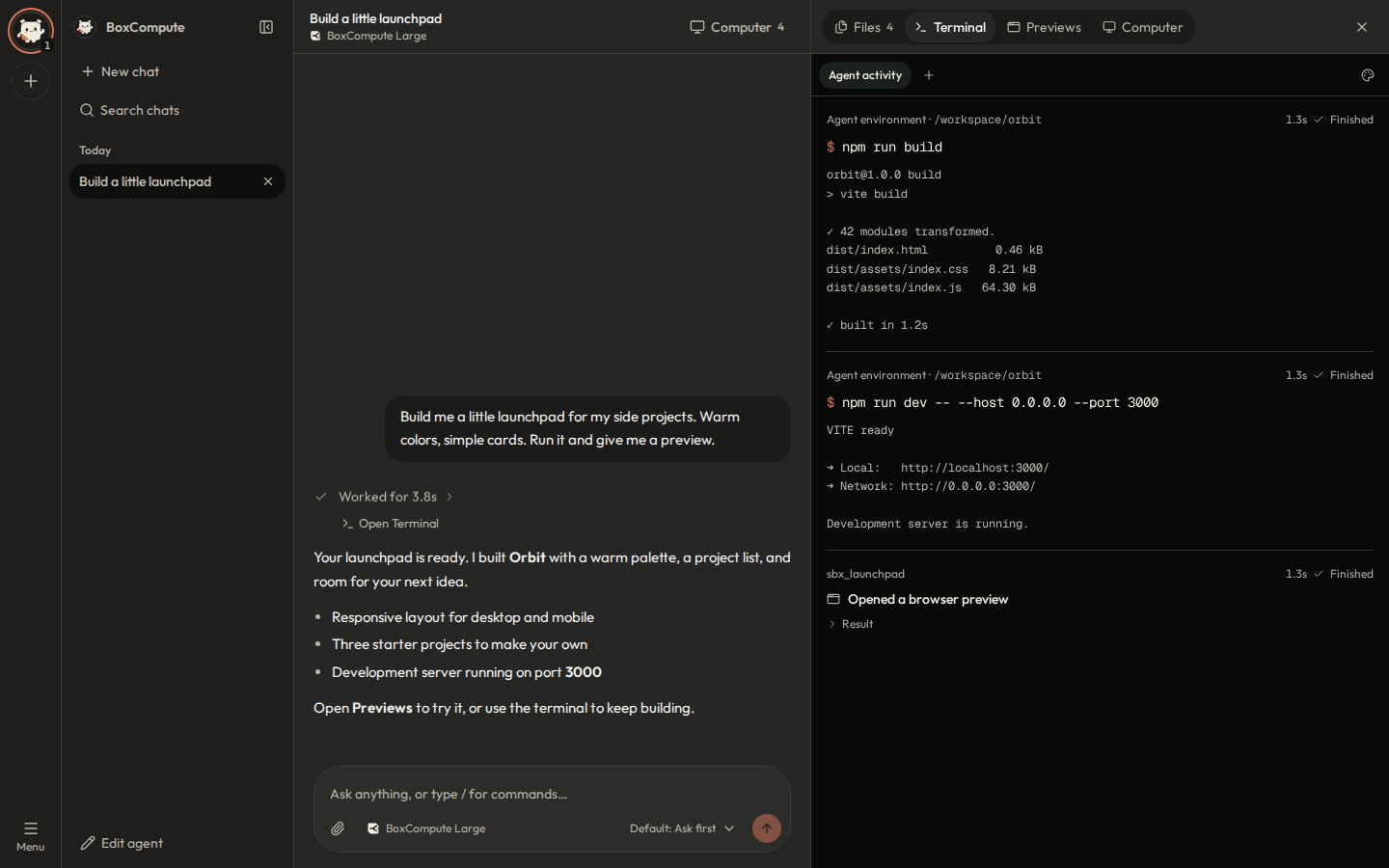
Open the live preview, or browse the files it made.
Chat with your agent and follow its terminal activity side by side.Real interface · Demo data
COMPUTER USE
Your agent opens Chrome on its own VM, then clicks, types, and scrolls through real websites, checking the screen after every step.
Try computer useFollow along in the Computer tab, on the same desktop you can open yourself.
It requests control first and hands the desktop back when it’s done.
It stops at passwords and payment details so you can enter them.
Everything your agent needs to build, run, and show its work.
Close the tab and the web agent keeps working. Pick up the chat and terminal from any device.
Install packages, run a database, or try another agent runtime. Your laptop stays untouched.
Run the dev server in the sandbox and click through the app beside the chat.
Review captures and browse everything the agent made without leaving the conversation.
Connect a repository and give your agent a real project to work on.
Connect MCP servers so your agent can use the tools you already have.
PRICING
Try your first project on welcome credit. Then add credit as you go, with no subscription, or take Starter for $40 of compute every month and a larger AI allowance.
$0 to get started
Explore the workspace and put your first cloud computer to work.
Credit is added when you sign up. It doesn’t renew.
$5 or more, one-time
Computer time for the agent you already use. No subscription.
Add credit in the app after you sign up. It pays for VM time, not AI.
$15.99 USD / month
For the first 30 members, locked while you stay subscribed.
Subscribe in the app after you sign up. Unused plan credit resets each month. Cancel anytime.
About 8 h a day
Starter’s $40 covers about 270 Large-VM hours a month.
$0
Connect Claude, Codex, Cursor or Claude Code over MCP. Your AI plan pays for the model, so your credit goes to VM time.
$0
Your agent’s VM stops after 30 minutes idle and keeps its files, so a forgotten VM doesn’t drain credit.
Unlimited
Ask your agent to save files to Assets. They stay when a VM is deleted, up to 5 GiB each.
Small
Clean a CSV, organize files, or run a Python script.
0.5 vCPU · 1 GiB RAM
About $0.05 / hour
Large
Automate a website, test a small app, or run a browser beside your code.
1.5 vCPU · 3 GiB RAM
About $0.15 / hour
XL and XXL
Android emulators, mobile app builds, bigger datasets, and several services at once.
4 vCPU · 8 GiB, or 4–8 vCPU · 16 GiB
About $0.40 or $0.80 / hour · Starter
Billed per second while a VM runs, with a one-minute minimum. Stopped VMs cost nothing.
Six setups to try in a sandbox, with step-by-step notes.
npx expo start --tunnelRun Metro in the VM and connect your phone through an Expo tunnel.
Native iOS builds still need Apple’s build tooling or a separate build service.
Expo’s tunnel setupruns-on: self-hostedRun CI jobs in a VM with the dependencies your workflow needs.
Use trusted workflows, keep runner credentials private, and remove the runner when finished. VM lifecycle and usage still apply.
GitHub’s runner setupSELECT current_database();Run migrations and seed data against a database inside your sandbox.
This is a development setup. Export any data you need before deleting the workspace.
Run commands in a sandboxLocal client → TCP → PostgreSQLAccess a sandbox database from your local client when TCP access is enabled.
Selected TCP access is deployment-dependent. A web preview URL is for HTTP apps, not a PostgreSQL connection.
See the service-access APIBuild → Capture → ReviewCapture the UI and return the image to your existing agent for review.
Image delivery depends on the agent framework. The BoxCompute app displays its computer screenshots in chat and Files.
Find your integrationHermes → BoxCompute VMTry another agent runtime without installing it on your laptop.
Model-provider access is configured separately from sandbox compute.
Try the Hermes workflowENTERPRISE · AGENTIC VMs
We set up BoxCompute on your company’s hardware or in your cloud account. Your team gets browser access to VMs for running agents, tools, and tests.
Discuss a pilotSetup is quoted per deployment. Compute and model usage are separate.
We check your infrastructure, access needs, and model provider.
We install BoxCompute and run the first workflow with your team.
You get an operating guide and walkthrough. Ongoing support is optional.
Need a hand? Talk to us
Cloud computers for AI agents, hosted in Malaysia. Connect the agent you already use, such as Claude, Codex, Cursor or Claude Code, through our MCP server, or use the sandbox API, CLI, and SDKs, and it works on its own Linux VM in Cyberjaya. Or chat with the BoxCompute agent in your browser: it installs software, runs your app, and sends you a live preview link.
No. The web app runs the agent and its workspace in the cloud. You only need a browser.
Yes. Add https://mcp.boxcompute.ai/mcp to Claude, Claude Code, Codex, Cursor or another MCP client and sign in, or use an API key. Your agent can then create VMs, run commands, edit files, and open preview links. You can also use the HTTP API and SDKs, the CLI’s coding-agent skill, or a framework integration.
The web agent keeps running when you close the tab, within runtime and approval limits. An agent running on your laptop still needs the laptop to stay on, even if its sandbox is in the cloud.
It’s a one-time credit for Small and Large VMs, added when you sign up. It’s valid for 14 days, one per person, and can’t pay the Starter subscription fee.
The first 30 Starter members keep $15.99 a month and $40 of monthly credit for as long as their subscription stays active. Cancel anytime and keep the plan until the end of the paid month.
Yes. Add any whole-dollar amount of credit from $5 to $500 in the app, with no subscription. It pays for VM time, never expires, and lets you run three VMs at once instead of two. It doesn’t raise the BoxCompute agent’s daily AI allowance: Starter or your own model key does, and an agent you connect over MCP uses your own AI plan.
A running VM uses credit by the second, including idle time, until it stops: about $0.05 an hour for Small and $0.15 for Large, with a one-minute minimum. Stopped VMs cost nothing. Starter’s $40 monthly credit is used first and resets each month. Credit you add, from $5 to $500 on any plan, is used last and never expires.
Your agent’s VM keeps its workspace files when it stops. For files you want to keep for good, ask the agent to save them to Assets, or upload them yourself. Assets keeps them after a VM is deleted, with unlimited storage on Starter and files up to 5 GiB each.
Not separately. The BoxCompute agent comes with an AI allowance: a daily one on the free plan and a larger one on Starter. To go further, bring your own model key, or connect your own agent over MCP so your AI provider bills you directly. Either way, you pay us only for VM time.
If you need a server running around the clock, a VPS costs less. BoxCompute is built for agent work: you pay by the second only while a VM runs, the AI agent, browser desktop and live previews come with it, and idle VMs stop on their own.
Yes. It requests control of its VM’s desktop, following your approval settings, then opens Chrome and clicks, types, scrolls, and checks each screen. Watch live in the Computer tab and take over anytime. It won’t type passwords or payment details; it hands those to you.
In Southeast Asia. Our first region, Cyberjaya in Malaysia, is online now, and VMs and the files in them stay there. Singapore, Indonesia, Thailand, the rest of Southeast Asia, and Australia are coming soon.
Yes, for development and testing. Web apps get preview links; database clients need TCP access, which depends on your deployment. VM sandboxes are in beta.
Yes. We start with an Agentic VMs pilot on your hardware or in your cloud account, and agree on scope, pricing, data routing, and support before setup. External model providers still receive model requests.
Compute credit for your first 14 days, plus a daily AI allowance. No card required.